
Find a Satellite
KeepTrack.Space offers multiple ways to find satellites quickly and accurately. Here’s how you can search for a specific satellite:
Basic Search
- Enter satellite name (e.g., “ISS”, “Hubble”)
- Enter NORAD ID (e.g., “25544”)
- Enter International Designator (e.g., “1998-067A”)
Advanced Search Syntax
- Use commas for multiple NORAD IDs: “25544,37820”
- Filter by launch year: “2023-” finds satellites launched in 2023
Search Results
- Results appear as you type (minimum 3 characters)
- Limited to 350 results by default (configurable in settings)
- Results show:
- Satellite name
- NORAD ID
- Launch date
- Current status
Selecting Satellites
- Click on a result to select the satellite
- The view will automatically center on the selected satellite
- The Satellite Info Box will display detailed information
- The satellite’s orbit will be highlighted
Tips for Effective Searching
- Start with broader terms and narrow down results
- Use NORAD IDs for precise selection
- Check launch date to distinguish between similar satellites
- Use the satellite type filter to narrow results
Common Issues and Solutions
No Results Found
- Check spelling
- Try alternative names
- Verify NORAD ID
- Ensure search term is at least 3 characters
Too Many Results
- Add more specific terms
- Use exact NORAD ID
Keyboard Shortcuts
Shift + F: Open search barEsc: Clear search/Close search bar
Examples
Let’s practice finding satellites using the search feature in KeepTrack.Space.
International Space Station (ISS)
Now that you’re familiar with the basics of KeepTrack.Space, let’s learn how to find a specific satellite. We’ll use the International Space Station (ISS) as an example.
-
Open the search bar:
- Click the search icon in the top menu, or
- Use the keyboard shortcut
Shift + F
-
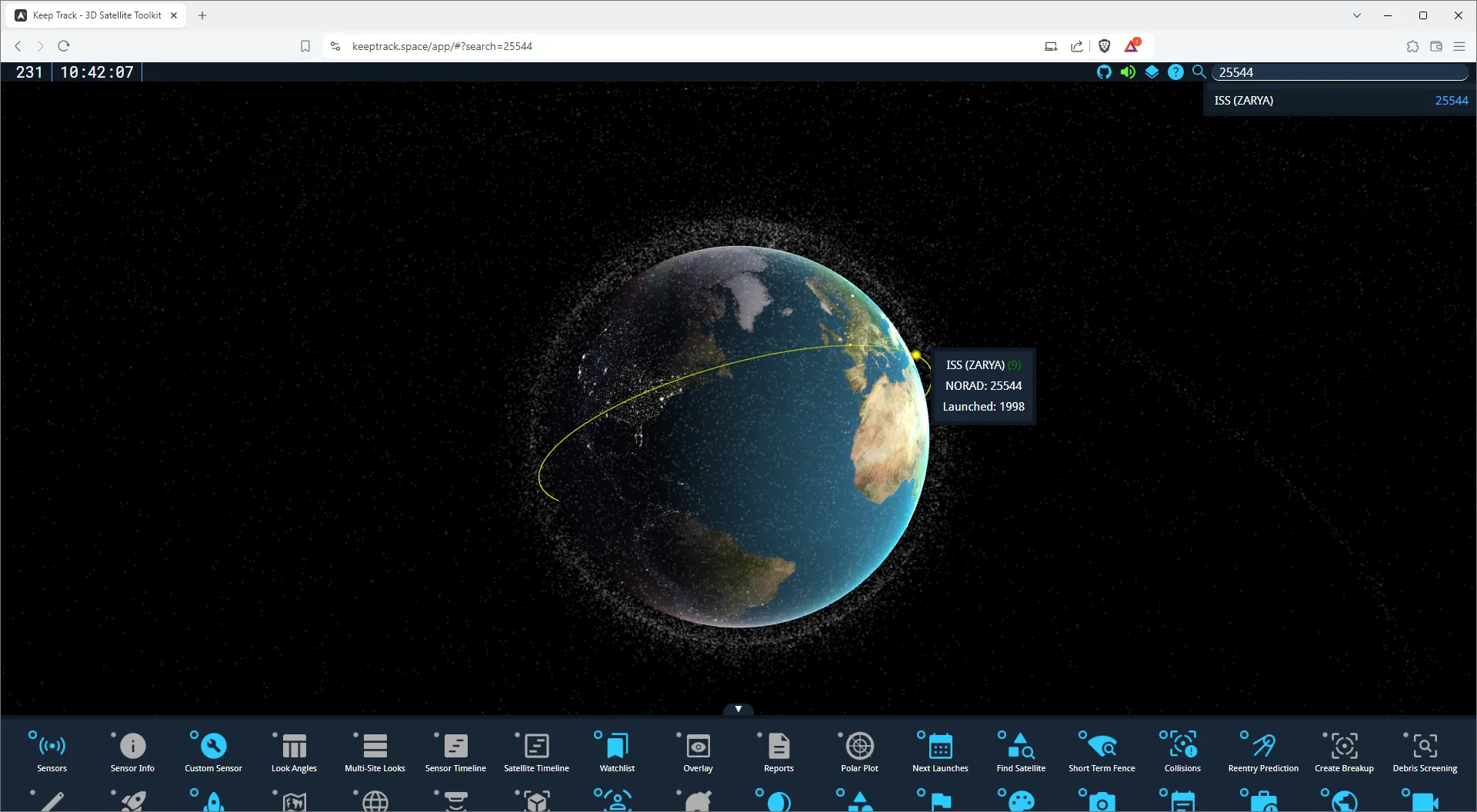
Enter search terms:
- Type “ISS” or “25544” (the NORAD ID for the ISS)
- You should see results appear as you type
-
Select the satellite:
- Click on the ISS in the search results
- The view will center on the ISS
-
Explore the satellite:
- Use the mouse to rotate the view:
- Left-click and drag to orbit around the ISS
- Middle-click and drag to adjust the camera angle
- Zoom in or out:
- Use the scroll wheel, or
- Use the
Numpad +andNumpad -keys
- Use the mouse to rotate the view:
-
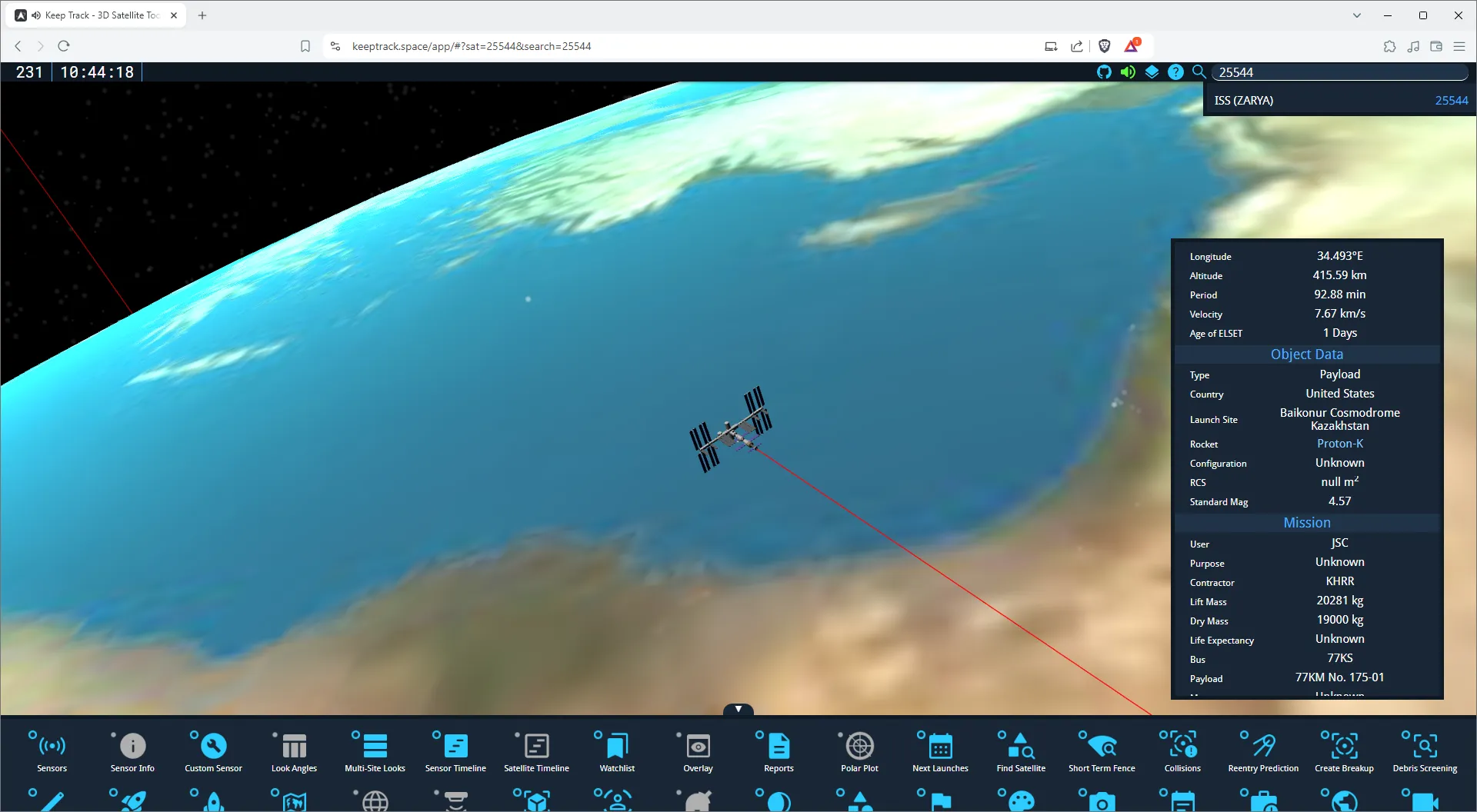
View satellite information:
- Look for the Satellite Info Box, usually in the bottom-right corner
- This box displays detailed information about the ISS
Hubble Space Telescope
Let’s try finding another satellite, like the Hubble Space Telescope:
- Open the search bar (
Shift + F) - Type “Hubble” or its NORAD ID “20580”
- Click on the Hubble Space Telescope in the search results
- Explore its orbit and information using the mouse controls and info box
Practice Exercise
Try finding these satellites on your own:
- GPS IIR-11 (NORAD ID: 28190)
- GOES 16 (NORAD ID: 41866)
- Tianhe (NORAD ID: 48274)
Remember, you can search by name or NORAD ID. Use the mouse controls to explore each satellite’s orbit and position relative to Earth.
Now that you know how to find satellites, you can explore the vast array of objects tracked by KeepTrack.Space. Happy satellite hunting!